Agentic Workflows
Design the multi-step workflow plans your agent system runs, then run and deploy them.
The Agentic Workflows section is the first thing you see when you enter Control Hub. It shows every workflow plan your agents can run, lets you design new ones, run them in the Test Bed, and deploy your agent system to production.
The Outcome
A set of workflow plans that each produce a named deliverable, ready to run and ready to deploy.
Before You Start
You need to be in Control Hub with a project created - that means a use case picked from the Jamming Board or a blueprint configured. See Control Hub for how you get here.
Workflows describe what gets produced; agents describe who produces it. If the execution pattern for your use case is still unsettled, resolve it in Agentic Process Transformation before you start editing plans here.
Start Here
Read the workflow cards the Workflow Architect already generated and check one thing first: does each deliverable summary describe something a person would actually ask for? A workflow that produces a vague artifact will produce vague output when you run it. Fix the deliverables before touching the steps.
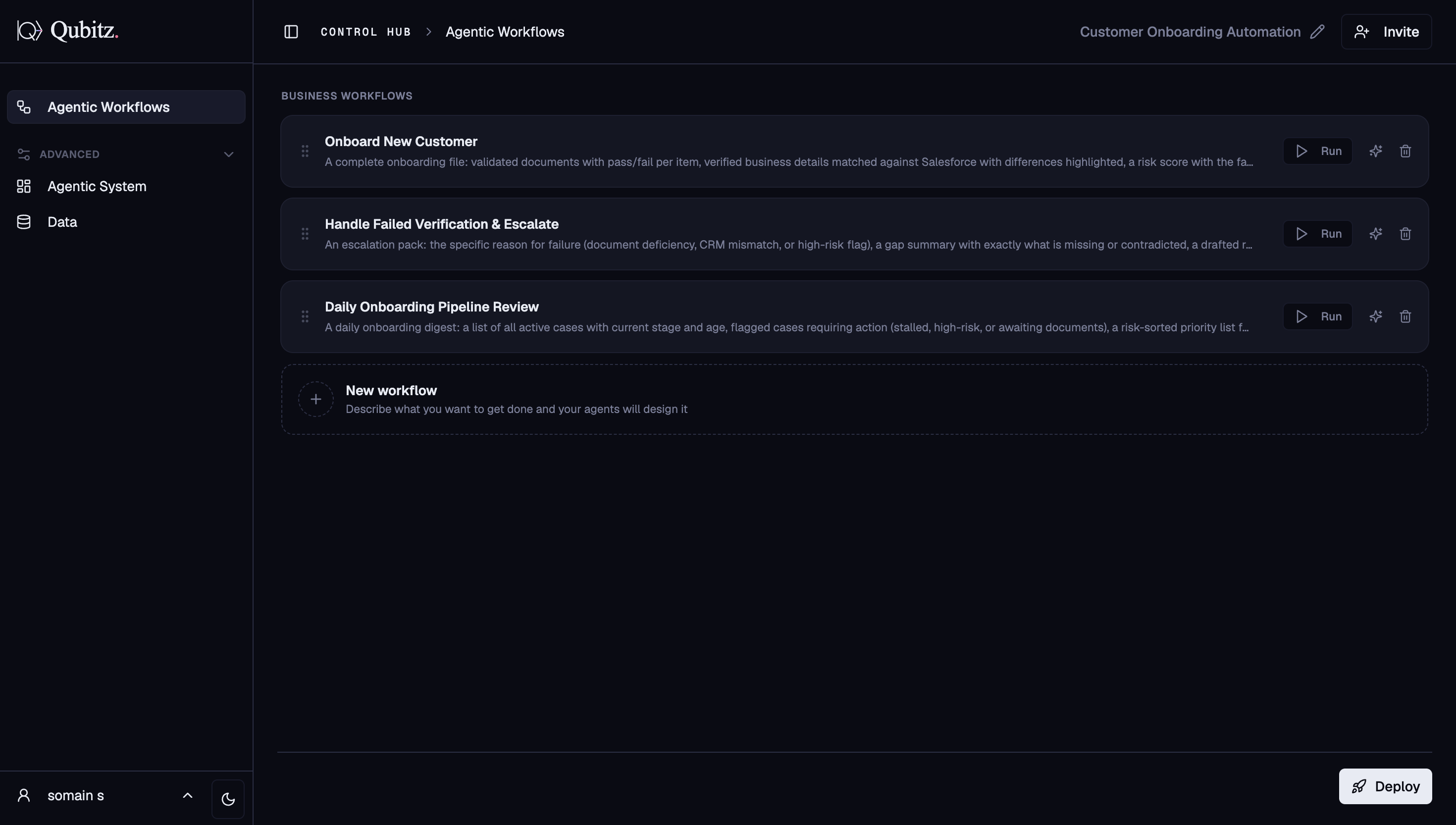
Workflow Cards
Each workflow appears as a card showing:
- Title - the name of the workflow
- Deliverable summary - what the workflow produces when run
- Run button - opens the Test Bed for that specific workflow
Workflows are listed in order. Drag the handle on the left of any card to reorder them.
Creating Workflows
Click the New workflow card at the bottom of the list. Describe what you want the workflow to accomplish and the Workflow Architect agent will design it: generating a name, deliverable summary, and ordered step list tailored to your use case and agent system.
You can also edit any existing workflow directly by clicking into its card, or use the Change with AI panel (right side of the screen) to describe modifications in plain English.
Workflow Cap
Each project holds up to:
| Limit | Value |
|---|---|
| Workflows per project | 30 |
| Total storage per project | 300 KB |
| Storage per workflow | 24 KB |
The platform shows remaining capacity before you hit the limit. If a project is full, it says so clearly before the save fails - so you can delete unused workflows first.
Running a Workflow
Click Run on any workflow card to open the Test Bed for that workflow. The Test Bed connects directly to your AgentCore runtime and streams the full run: agent activity, structured output, generated documents, evaluation, and safety & stress testing.
See Test Bed for a full walkthrough of what happens during a run.
Deploying Your Agent System
The Deploy button sits at the top of the Agentic Workflows tab. Clicking it opens a deployment dialog with two options:
- Qubitz Cloud - managed deployment in Qubitz's AWS infrastructure; fastest path to production
- BYOC (Bring Your Own Cloud) - deploy directly into your own AWS account for full ownership and data residency
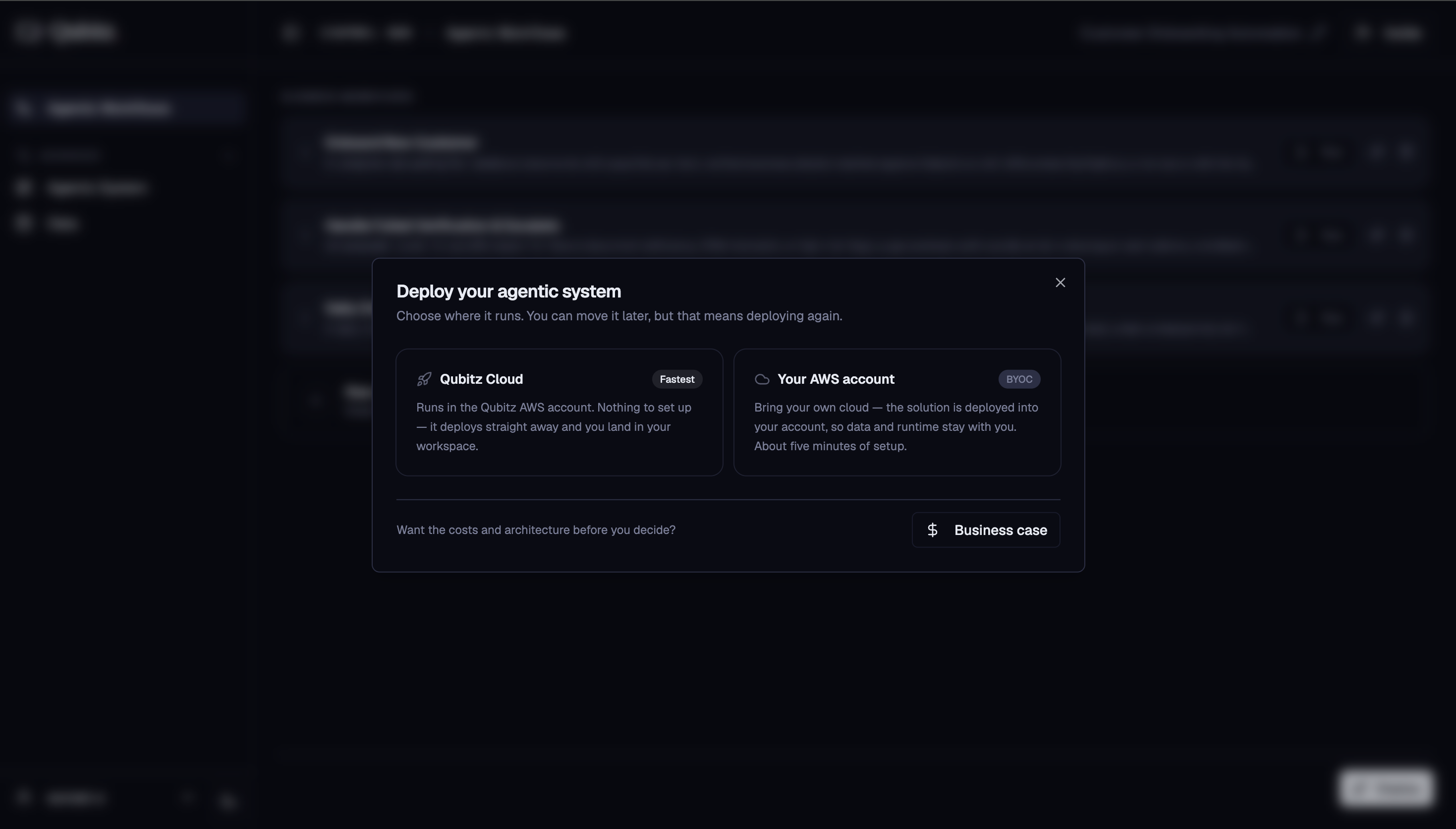
Once deployed, your agent system runs on AWS Bedrock AgentCore. Head to Application Management to generate the customer-facing web app, configure API access, and monitor production.
See Deploy for full deployment options.
What Good Looks Like
- Every workflow's deliverable summary names a specific output, not an activity
- The card order matches the order the work actually happens in
- Workflows that were generated but are not used have been deleted, not left to eat into the 30-workflow cap
- Each workflow has been opened in the Test Bed at least once and completed a run
- You are comfortably under the cap, with remaining capacity for the workflows you know are still coming
Where This Leads
- Agentic System - configure the agents that execute these workflows, including models, tools, and guardrails.
- Test Bed - run a workflow end to end and score the output before you deploy it.
- Deploy - choose Qubitz Cloud or BYOC, and review the Business Case first.