Custom Use Cases
Add a use case the assessment missed so it competes alongside the generated ones on the Jamming Board.
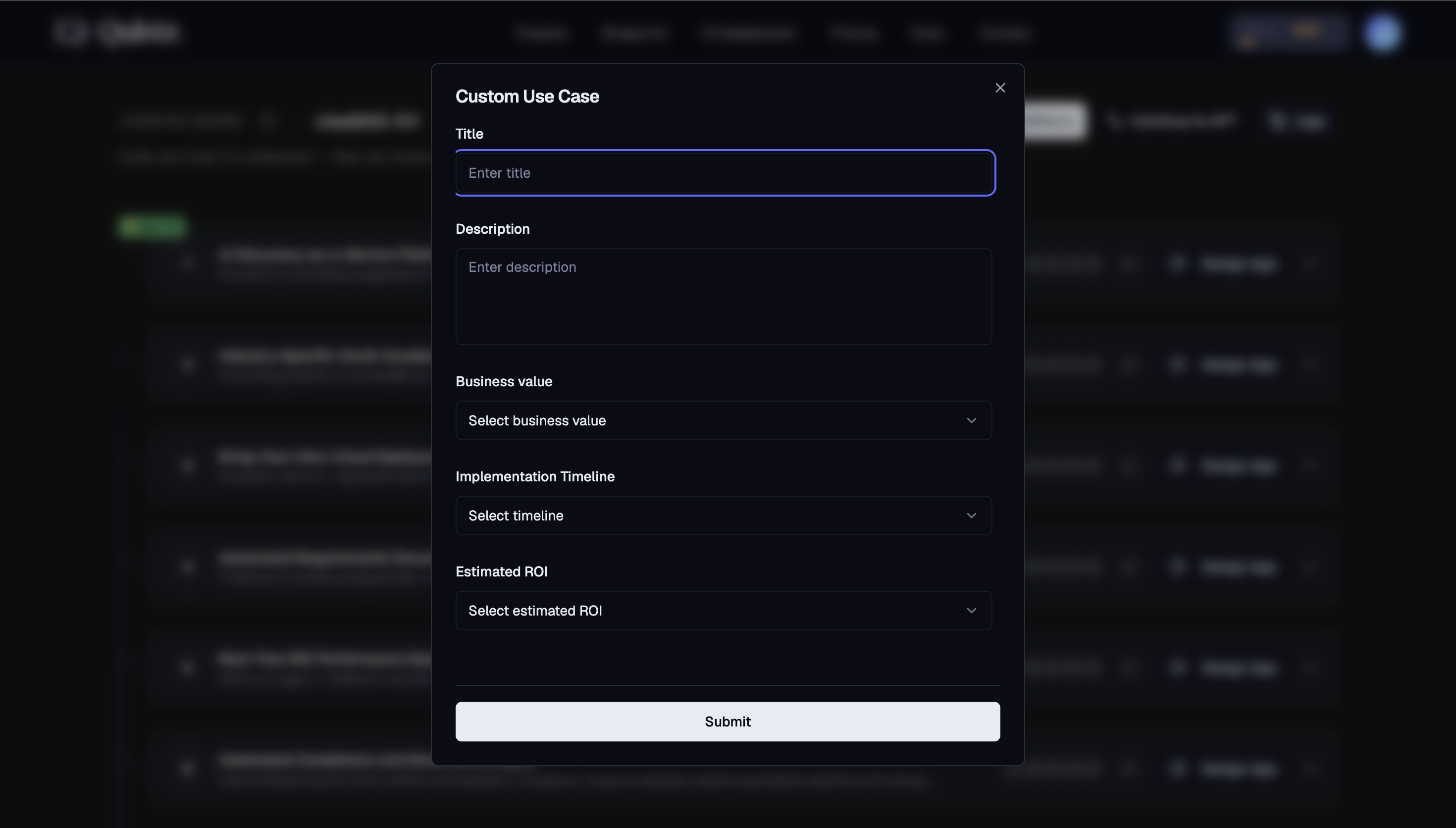
Click + Add Use Case in the Jamming Board header to add a use case manually alongside the AI-generated ones.
The Outcome
A use case you know the business needs sits in the ranked list and gets rated on the same terms as everything the pipeline produced.
Before You Start
You need a populated Jamming Board - see Jamming Board.
Read the generated list first. What looks missing is often already there under a different name, and a near-duplicate splits your team's ratings across two rows instead of concentrating them on one.
Start Here
Click + Add Use Case in the Jamming Board header and write the title and description at the same level of specificity as the generated entries - the named process and the problem it causes, not the ambition.
Fields
| Field | Description |
|---|---|
| Title | Name of your use case |
| Description | What the use case does and the problem it solves |
| Business value | Select Low, Medium, or High |
| Implementation Timeline | Select timeline range |
| Estimated ROI | Select Low, Medium, or High |
Click Submit to add it to the Jamming Board.
Where Custom Use Cases Appear
Custom use cases appear in the ranked list alongside AI-generated ones. They can be:
- Rated and starred like any other use case
- Commented on via the Comments button
- Selected for Design App to launch Control Hub
- Included in Executive Presentation and other artifact outputs
- Selected for AWS Architecture Diagram generation
What Good Looks Like
- The description names a specific process and the problem it causes, so reviewers can judge it against the generated entries
- Business value, timeline, and ROI reflect your honest estimate - they appear in the expanded card and in generated artifacts, where optimism gets quoted back at you
- It is not a restatement of a use case already on the board
- Your team has rated and commented on it. A custom use case nobody rates is an answer in itself
Where This Leads
- Jamming Board - rate and comment on the full list now that it is complete
- Choosing Your First Use Case - custom use cases compete for the first build slot like any other