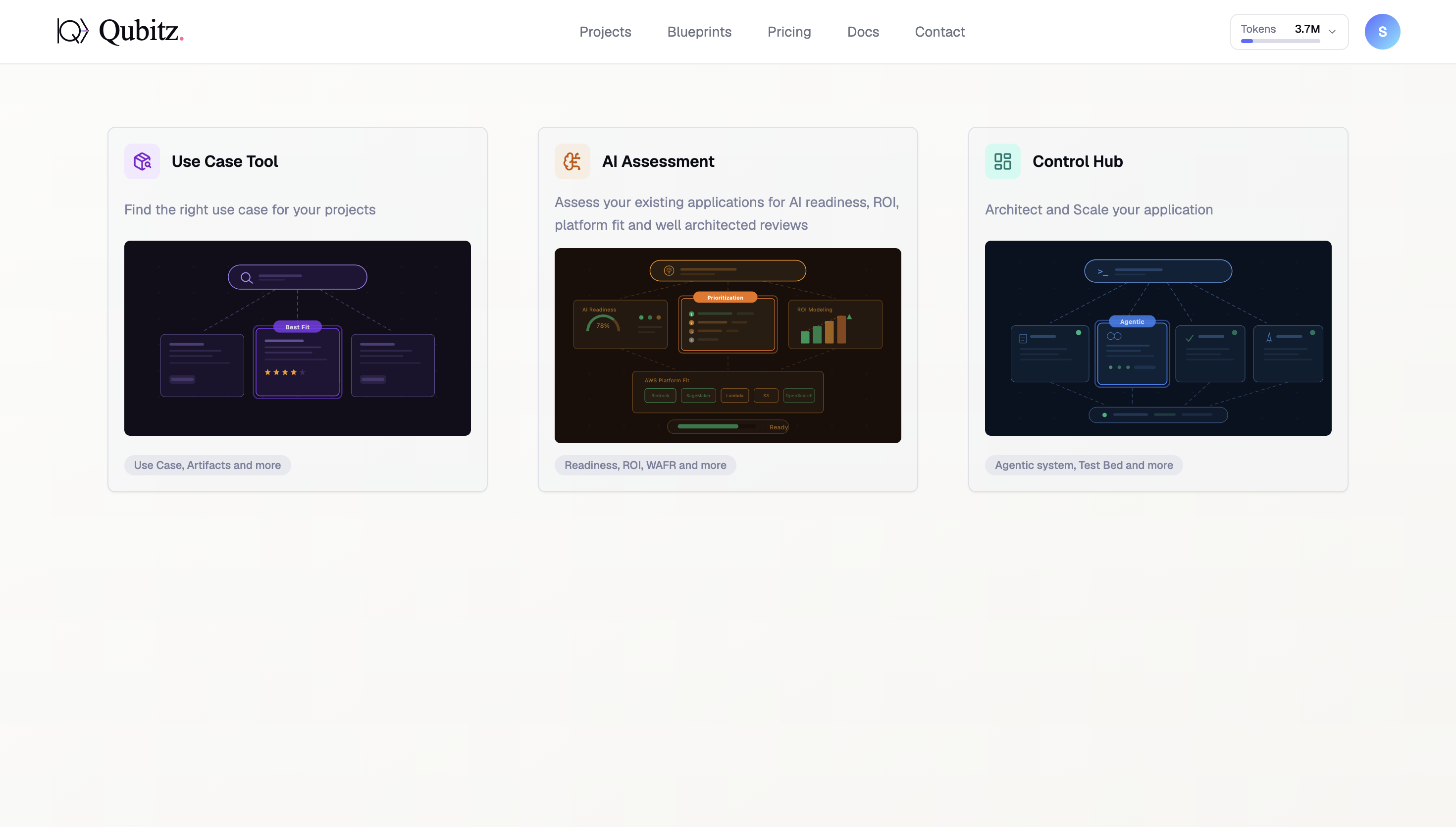
Navigation & Layout
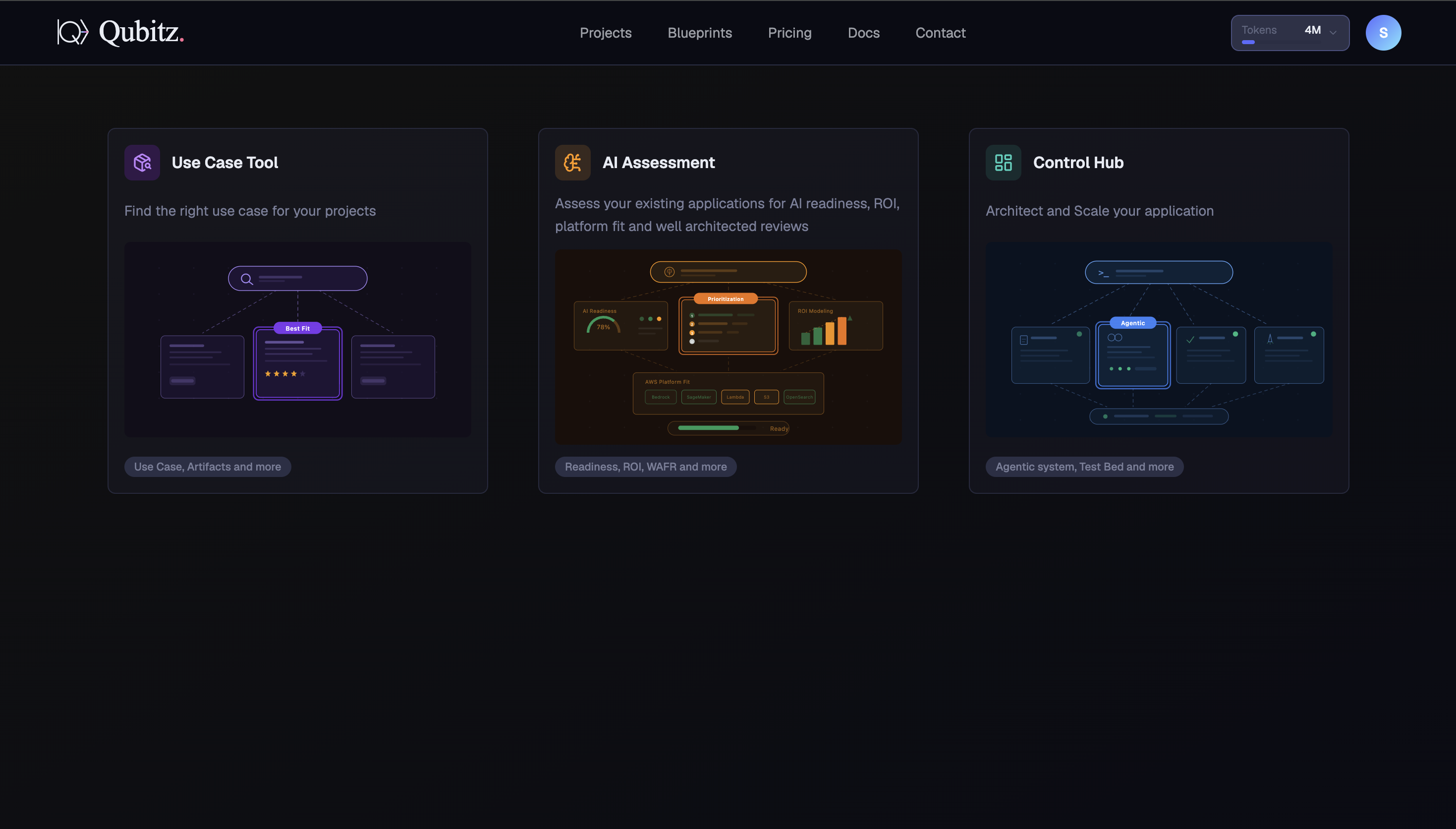
Overview of the Qubitz AI landing page, global navigation bar, project selection hub, and theme system.
Login & Authentication
Click the Login button in the top-right corner of the navigation bar. Qubitz supports standard email/password authentication.
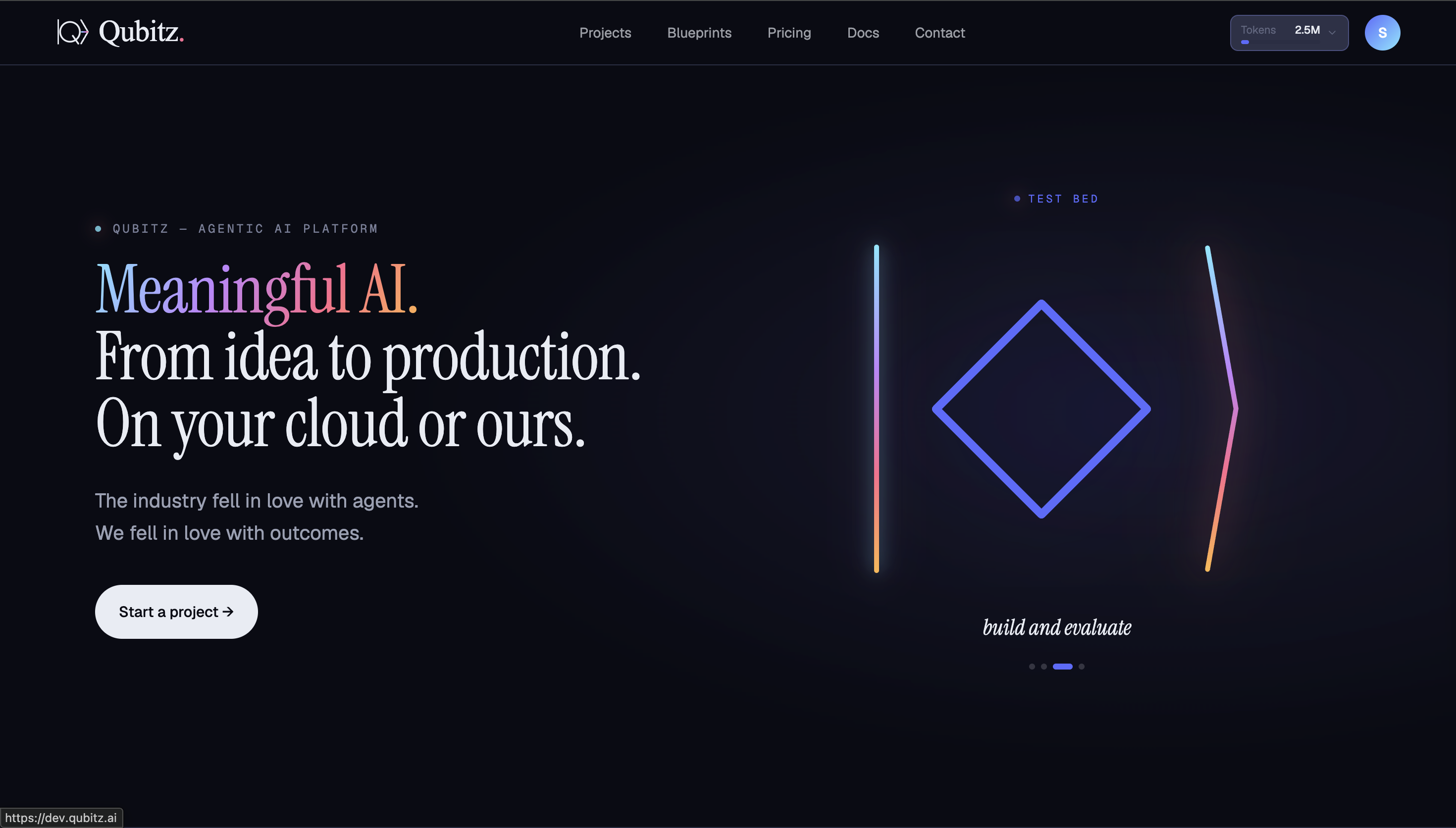
Landing Page
The Qubitz AI landing page (qubitz.ai) is the entry point for all users. It presents the platform's value proposition and provides access to authentication.
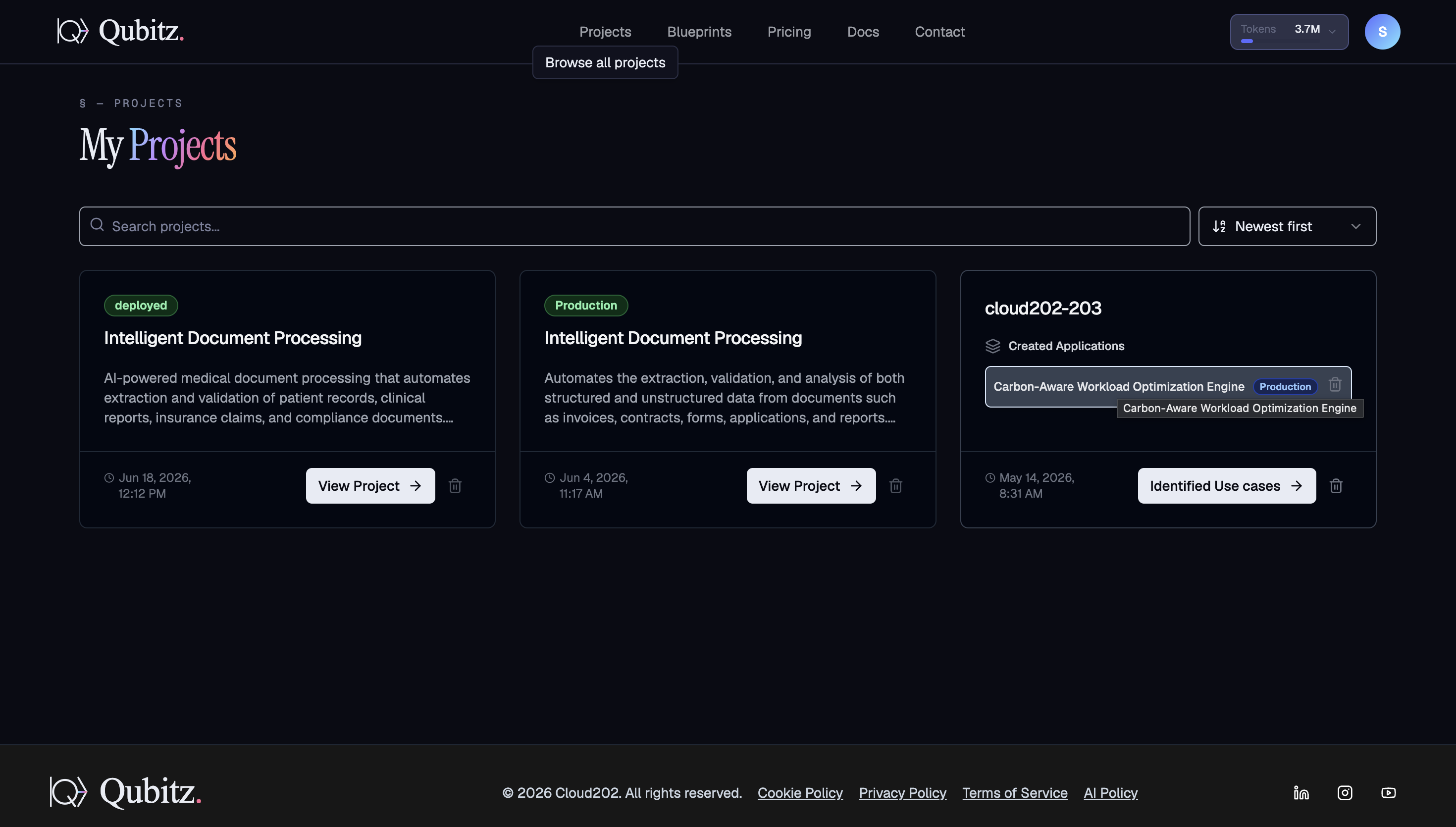
Projects
This is where you view your projects.
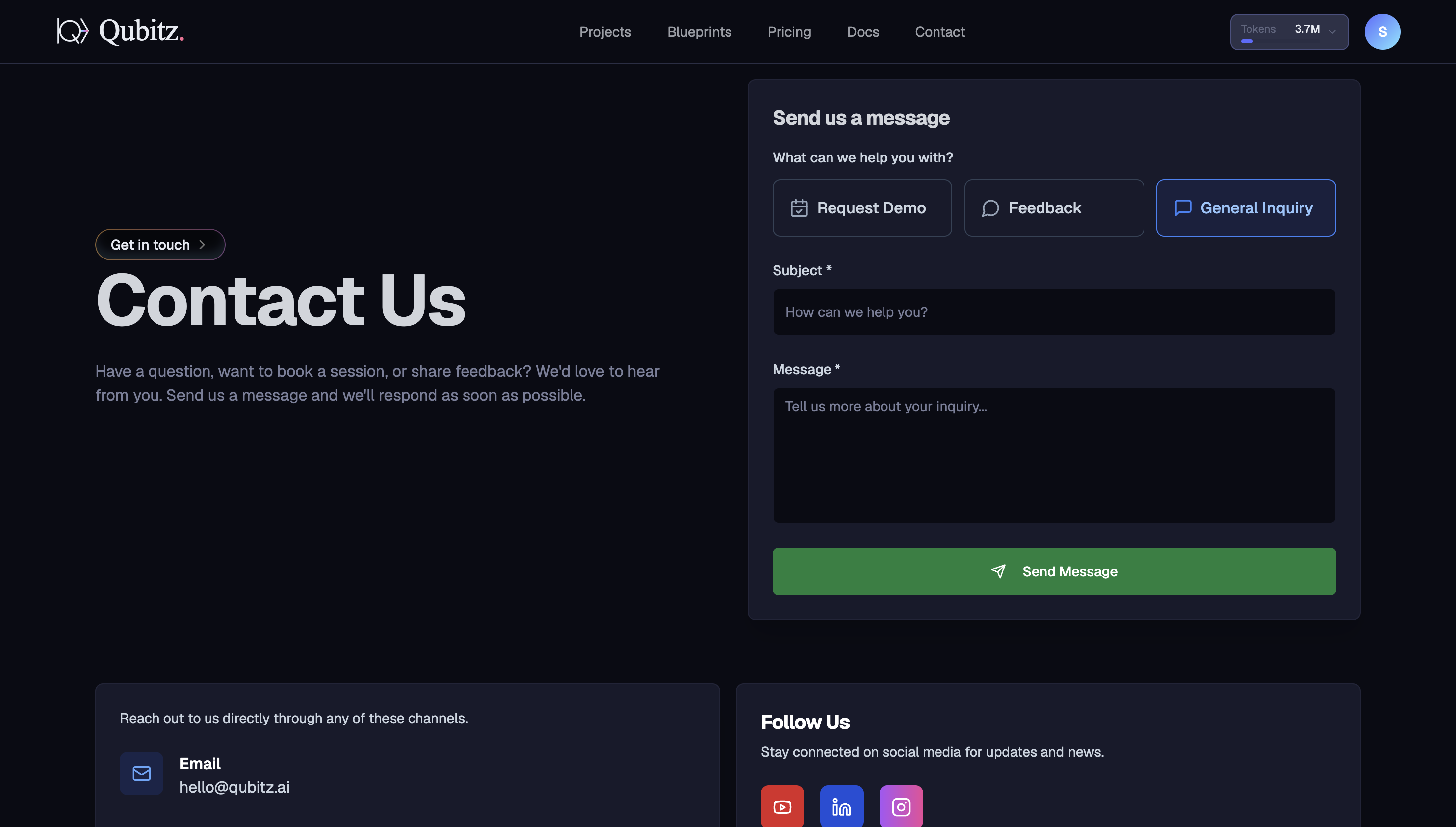
Contact Us
Have a question, want to book a session, or share feedback? Send us a message and we'll respond as soon as possible.
Send us a message
| Field | Description |
|---|---|
| What can we help you with? | Request Demo, Feedback, or General Inquiry |
| Subject | Required |
| Message | Required |
Reach out to us directly
- Email -- hello@qubitz.ai
Follow Us
Stay connected on social media for updates and news -- YouTube, LinkedIn, and Instagram.
App Builder
After authentication, you land on the App Builder. Describe the business problem you want to solve, and Qubitz guides you through shaping your idea - covering project name, workflows to automate, who uses it, data sources, integrations, and success criteria. Click Build my solution to begin.
Theme System
Switch between Light and Dark themes by clicking your profile icon in the top-right corner of the navigation bar.